Basic Setup
After installing, navigate to EditPlugins. Enable 'Player Statistics' and restart the editor.
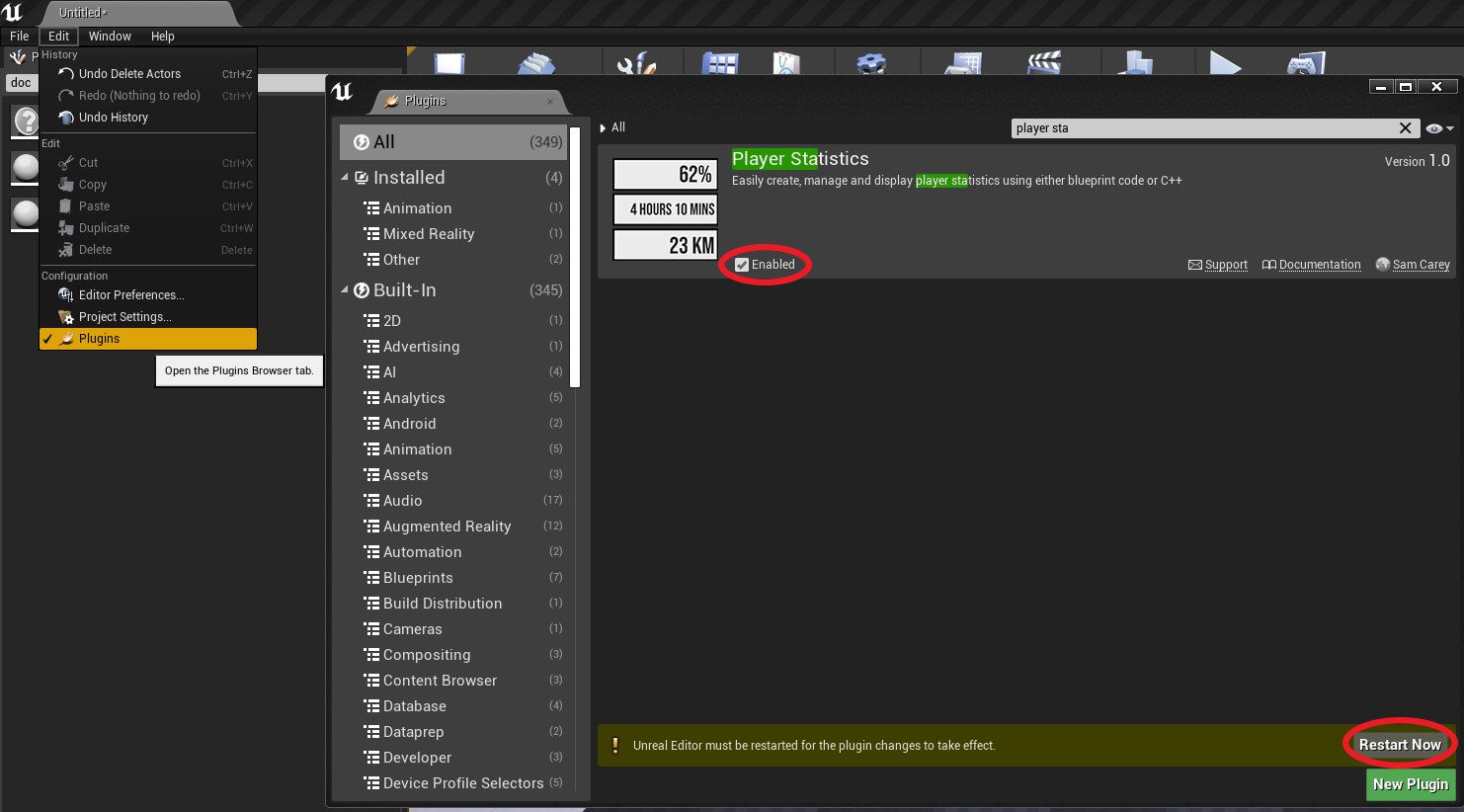
All configuration is performed inside the Player Statistics projects settings menu. To find this menu, simply select EditProject Settings, it can then be found under the ‘Game’ section.
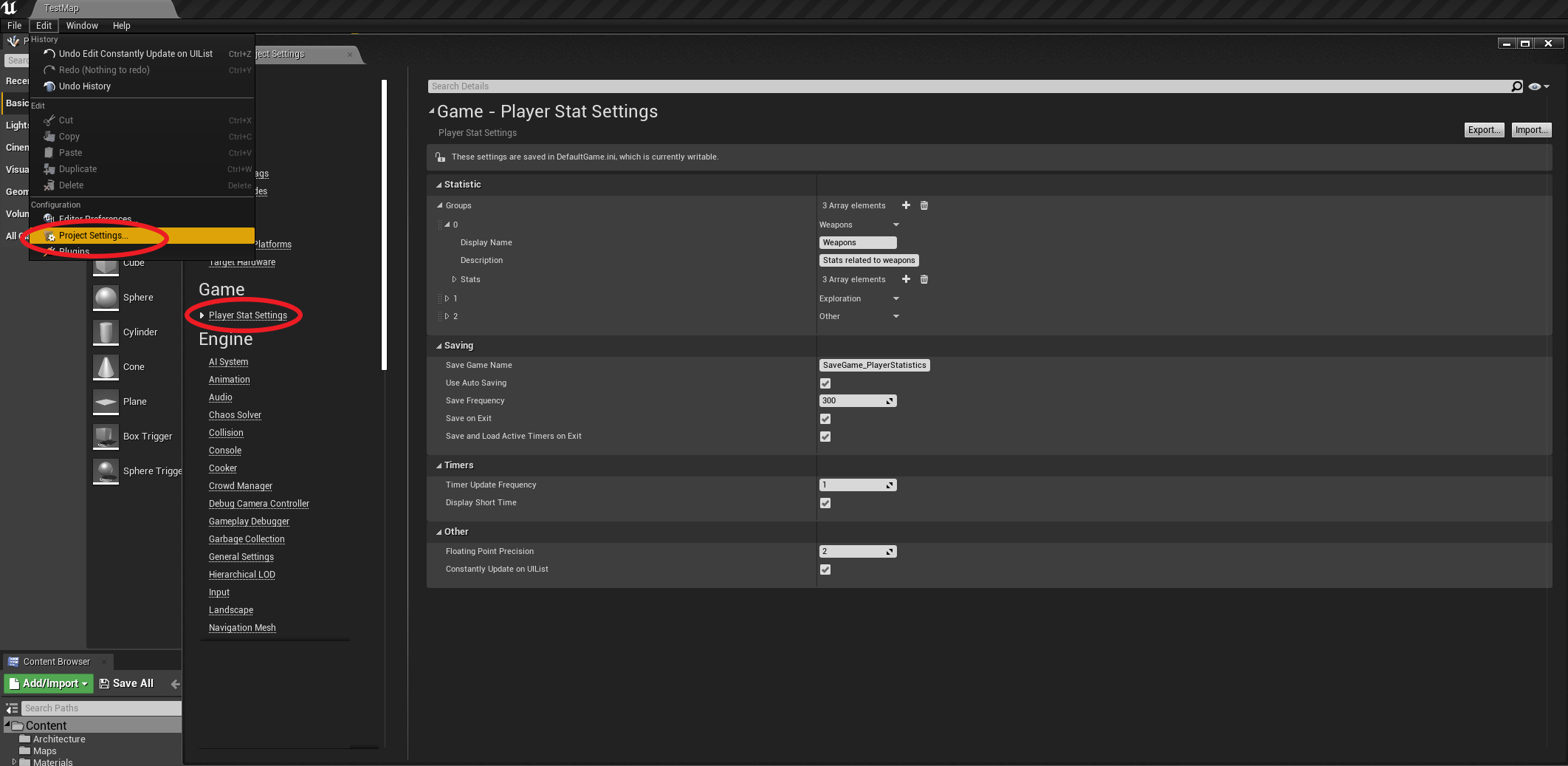
Defining Statistics/Statistic Groups
Within the first section of the settings menu a list of all player statistics can be found. Each of these is broken into a Group/Category with a list of all stats related to it. All stats must have a unique key to ensure that they can easily be referenced in blueprint code/C++. Define all stats you wish to have in your game here.
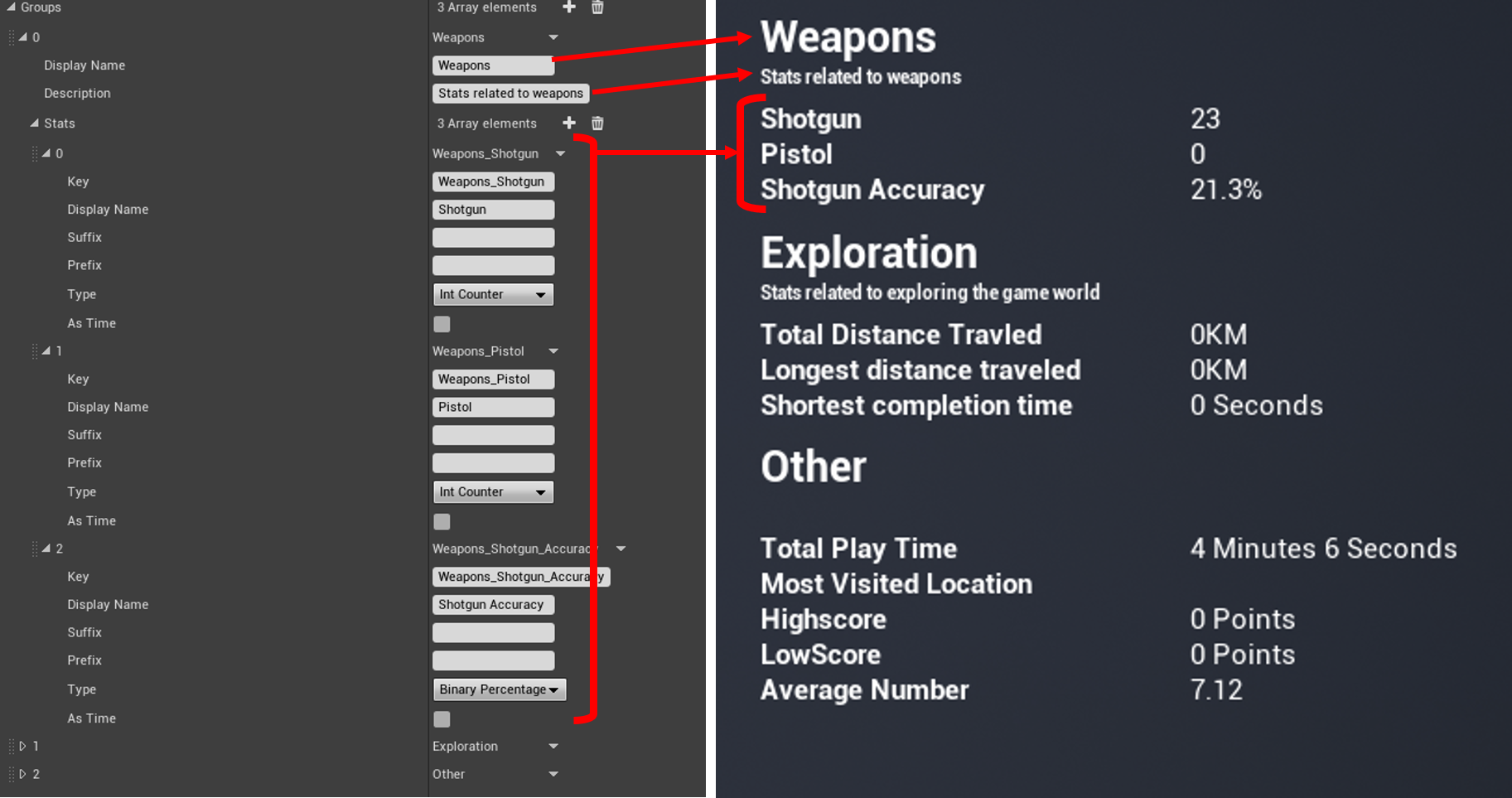
There are a number of properties which can be set to customise each player statistic. These are described below.
Statistic Group
| Property | Description |
|---|---|
| Display Name | The name of the statistic group which the player will see in-game. |
| Description | A description of the type of statistics within this group. The player will see this in-game. |
| Stats | An array of all statistics part of this group. See Player Statistic. for more information |
Player Statistic
| Property | Description |
|---|---|
| Key | A unique key used to identify a player statistic in blueprint/C++ code. |
| Suffix | A string to add to the end of a statistic when viewing on the UI. |
| Prefix | A string to add to the beginning of a statistic when viewing on the UI. |
| Types | Controls how a player statistic is adjusted/displayed to the player. There are 8 options to select from. See Types for more information. |
| AsTime | Treat the current statistic as a time. This works for any number based type. Displays the value in a formatted time converting from milliseconds |
Types
| Property | Description |
|---|---|
| Average | Takes all values added and displays the average. Examples : Average score, Average completion time. |
| Binary Percentage | Takes a number of bools and displays the percentage of true inputs. Examples : Bullet hit accuracy, Kill Death ratio (KD). |
| Int Counter | Simple int counter. Examples : Bullets Shot, Jumps made, Total Kills. |
| Float Counter | Simple float counter. Examples : Distance Traveled, Money Collected. |
| Custom Text | Stores a custom string value which can be set to anything. Examples : Last Visited Town. Most used weapon. |
| High Score | Only updates saved value if larger than previous. Examples : Furthest Distance traveled, Most points in one game. |
| Low Score | Only updates saved value if smaller than previous. Examples : Worst performance, Least damage taken in single game. |
| Timer | Automatically keeps track of time passed between two defined points. Examples : Total Playtime, Total time spent in taverns. |
After adding, removing or rearranging any player statistic or group from the list, you must delete the save file from ** “ProjectName/Save/NameOfSaveFile.sav” **. Failure to do this may result in unexpected behaviour.
Other Settings
| Setting | Description |
|---|---|
| SaveGameName | The name of the save game slot used to keep track of player statistics states. |
| UseAutoSave | If true the states of all player statistics will be saved to a SaveGame at every SaveFrequency seconds. |
| SaveFrequency | The number of seconds between each auto save. |
| SaveOnExit | If true, all player statistics will be saved as the game shuts. Should be used with AutoSave or manual saving to prevent data loss if the application force exits or crashes. |
| SaveAnLoadTimersOnExit | If true, all active timers will be saved when exiting the game and restarted automatically next launch. |
| TimerUpdateFrequency | The frequency that timers recalculate and add the amount of time passed. |
| DisplayShortTime | If true UI representations of time will be shortened e.g. Minutes becomes Mins. |
| FloatingPointPrecision | Round all floating point representations to this number of decimal places. |
| ConstantlyUpdateOnUIList | If true, the values of all player states including timers will be updated to the UI constantly while viewing the statistics list. |