Building
Once you have a build configuration, you can run it from the inspector, the Build Config Browser, or the command line. The same stages run either way.
From the Config Inspector
- Select a build configuration asset in the Project window
- Click Build at the bottom of the inspector
- Watch progress in the Console window
Build Config Browser
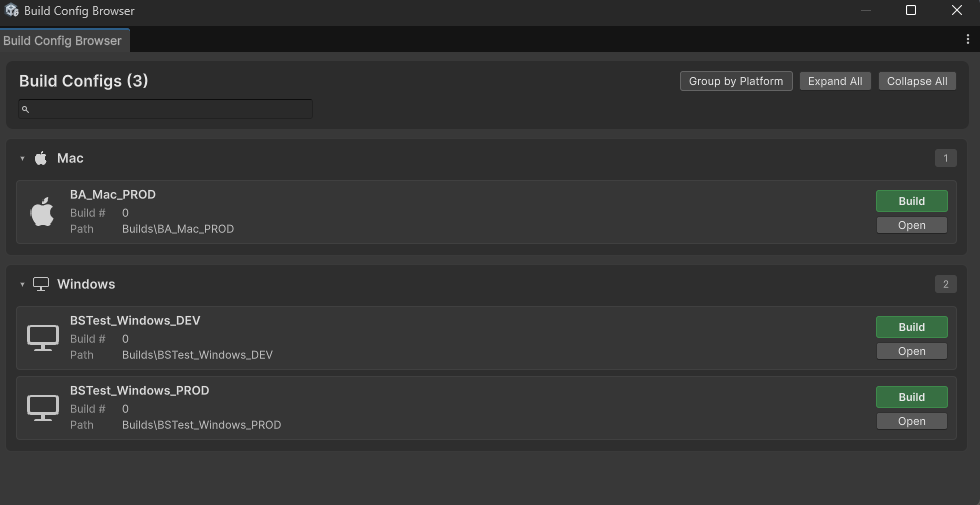
WindowBuild AssistantBuild Config BrowserBrowse every config in the project, then build or open one without hunting through the Project window.
- Search by name
- Group by platform, or show a flat list
- Expand All / Collapse All
- Paths are shown relative to the project
- Build starts that config
- Open selects it in the Project window
From the command line
For CI/CD and batch runs, see Command-line/Batch Mode Support.
Large file uploads
For large artifacts (zips, installers) going to a cloud sync folder (Google Drive, OneDrive, and similar), copy them with BA_CopyFile instead of uploading from Unity.
- Unity can quit and start the next build while the cloud client syncs
- Large files are less likely to time out
- Multiple configs finish faster
Typical flow:
- Build
- Zip
- BA_CopyFile into the synced folder
- Unity exits
- The cloud client uploads in the background