Extending Build Assistant
Advanced only. Skip this page if Steamworks upload, Slack logging, or a built-in action already does the job. You only need a plugin when you are writing a new step, target, logger, settings page, or filename token.
What you can extend
| Kind | Base class | Where it shows up |
|---|---|---|
| Action | BuildActionBase | Pre-build or post-build + Add on a config |
| Platform | BuildPlatformBase | Set Platform |
| Logger | BuildAssistantLoggerBase | Editor startup. Not an action on a config |
| Settings | BuildAssistantSettings | Project SettingsBuild Assistant |
| Filename tokens | FileNameProperties | Buttons on Filename Builder |
Build Assistant finds new types by reflection. Restart Unity if a type is missing from a menu.
The Example Plugin sample in dev.samcarey.buildassistant.core is a full stub of each row. Import it from Package Manager if you want a starting folder. The snippets below are smaller than that sample.
Extension types
Actions (BuildActionBase)
Subclass BuildActionBase. Implement GetMetadata(), DrawActionEditor, and RunTask.
public class MyAction : BuildActionBase
{
    public override BuildActionResult RunTask(BuildConfig config)
    {
        return BuildActionResult.Success;
    }
}
Return BuildActionResult.Success, Failed, Warning, or Skipped. Use SuccessWithMessage or FailedWithMessage when you want text in the build report.
Platforms (BuildPlatformBase)
Subclass BuildPlatformBase. You must implement GetBuildTarget, GetBuildTargetGroup, and GetMetadata.
public class MyPlatform : BuildPlatformBase
{
    public override BuildTarget GetBuildTarget() => BuildTarget.StandaloneWindows64;
    public override BuildTargetGroup GetBuildTargetGroup() => BuildTargetGroup.Standalone;
}
Override DrawPlatformSpecific for extra inspector fields, and PlatformPostBuild if the target produces packages after Unity compiles. Use GetCustomRuntimeBuildProps if the player should see extra keys in runtime build info.
Loggers (BuildAssistantLoggerBase)
Subclass BuildAssistantLoggerBase and implement the callbacks. ShouldUseLogger() must return true for it to be used.
using BuildAssistant.BuildActions;

public class MyLogger : BuildAssistantLoggerBase
{
    public override bool ShouldUseLogger() => true;

    public override void BuildStarted(BuildConfig config)
    {
        BuildAssistantService.Log($"Started {config.buildConfigName}");
    }

    public override void BuildEnded(BuildConfig config, bool success)
    {
        if (success)
            BuildAssistantService.Log("Build finished");
        else
            BuildAssistantService.LogError("Build failed");
    }

    public override void BuildActionEnd(BuildActionBase action, BuildActionResult actionResult)
    {
        BuildAssistantService.Log($"{action.GetMetadata().Title}: {actionResult.result}");
    }

    public override void ConfigStart(BuildConfig config, string buildNumberOverride) { }
    public override void ChangePlatformStart(BuildConfig config) { }
    public override void ChangePlatformEnd(BuildConfig config, bool success) { }
    public override void BuildActionStart(BuildActionBase action) { }
    public override void LogResults(BuildConfig config, BuildAssistantReport report) { }
    public override void UploadReport(string reportPath) { }
}
Settings (BuildAssistantSettings)
Subclass BuildAssistantSettings and add a [SettingsProvider] on a static method. The page lands under Project SettingsBuild Assistant.
public class MySettings : BuildAssistantSettings
{
    [SerializeField] public string TestProp1;
    [SerializeField] public int TestProp2;

    [SettingsProvider]
    public static SettingsProvider CreateSettingsProvider() => CreateProvider<MySettings>("My Settings");
}
CreateProvider<T>() draws the serialized fields for you. Use BuildAssistantSettingsProviderBase<T> only if you need a custom settings GUI.
Filename tokens (FileNameProperties)
Subclass FileNameProperties, set Category, and register keys in RegisterAll.
public class MyFilenameTokens : FileNameProperties
{
    public override string Category => "Custom";

    public override void RegisterAll()
    {
        Register("CHANNEL", "Release channel", (config, platform, report) => "beta");
    }
}
The first argument is the token without brackets []. Pass a fourth Register argument if one token should sit in a different category than the class default.
Inspector fields
Add these to an action or platform as required.
Filename builder (FilenameBuilder)
Put a FilenameBuilder on an action or platform when the output name should include build data.
The inspector shows a template, a live preview, and token buttons grouped by category. Click a token to insert [NAME], [BUILD_NUMBER], and the rest. Unknown tokens stay in the string and show as invalid.
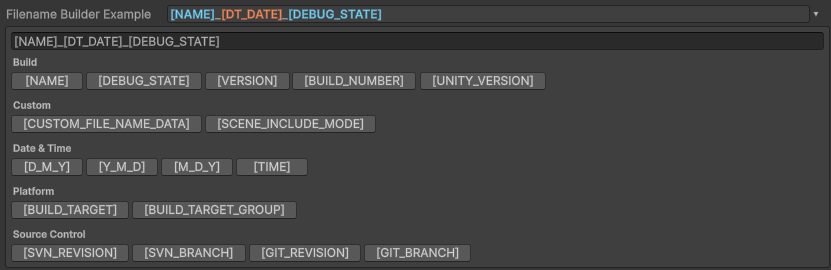
Call GetFileName() during the build, after CurrentConfig and CurrentReport are set.
[SerializeField]
public FilenameBuilder OutputFileName = new FilenameBuilder("[NAME]_[Y_M_D] (Build [BUILD_NUMBER])");

string fileName = OutputFileName.GetFileName();
Built-in tokens:
| Category | Tokens |
|---|---|
| Build | [NAME], [DEBUG_STATE], [VERSION], [BUILD_NUMBER], [UNITY_VERSION] |
| Date and time | [D_M_Y], [Y_M_D], [M_D_Y], [TIME] |
| Platform | [BUILD_TARGET], [BUILD_TARGET_GROUP] |
| Source control | [GIT_BRANCH], [GIT_REVISION], [SVN_BRANCH], [SVN_REVISION] |
A subclass of FileNameProperties can be made to extend these options.
Artefact refs (ArtefactRef)
An earlier action in the same build can register a named path. A later action then reads that path and use it in any way its needs.
Zip does this with MAIN_ZIP. A later copy or upload action can take that zip.
[SerializeField] ArtefactRef Input = new ArtefactRef();

public override BuildActionResult RunTask(BuildConfig config)
{
    string path = Input.GetArtefactPath();
    return BuildActionResult.Success;
}
The dropdown lists IDs already hinted by earlier actions and the platform on the current config. Use Custom lets you type an ID that is not in that list.

GetArtefactPath() only works in the same build, after the registering action has run.
If your action creates a file, register it so later steps can use it:
BuildAssistantService.RegisterArtifactForCurrentBuild("MY_OUTPUT", outputPath);
Expose the ID from GetArtefactHints so the dropdown can see it before the build runs:
public override List<string> GetArtefactHints()
{
    return new List<string> { "MY_OUTPUT" };
}
The type is ArtefactRef. The service methods use Artifact in the name. That split is real. Use the names as written.
Platforms can register artefacts from PlatformPostBuild the same way.
File system paths (FileSystemPath)
FileSystemPath is a path field with a kind. Resolve it against the config:
[SerializeField] FileSystemPath OutputFolder = new FileSystemPath(false, null, PathKind.Workspace);

string folder = OutputFolder.Resolve(config);
PathKind.Project is relative to the Unity project. Workspace is relative to the config workspace. Absolute is a full OS path. The inspector Resolved row is that same result. ResolvePath is a leftover alias for Resolve.

Hidden text (BuildAssistantHiddenText)
Use BuildAssistantHiddenText for API keys and passwords. Tick environment-variable mode and store the variable name, not the secret.
Without that mode, the value is still saved on the asset. Treat it as plain text in source control.

When environment-variable mode is on, TextValue reads the named variable at runtime.

Command-line args (BuildAssistantService)
Batch runs can pass extra flags into your types. Built-in overrides include -buildNumberOverride and -workspaceOverride. Your plugin can add its own.
Unity.exe ... -CustomLaunchArg "SomeValue" -CustomLaunchFlag
bool hasArg = BuildAssistantService.HasLaunchArg("CustomLaunchArg");
string value = BuildAssistantService.GetLaunchArg("CustomLaunchArg");
bool hasFlag = BuildAssistantService.HasLaunchFlag("CustomLaunchFlag");
IsBoolLaunchArgSet is true when -key true. An action can also set BatchModeRequiredFlag so it only runs in batch if that flag is present.