Uploader for Steamworks
Latest docshttps://samcarey.dev/docs/Unity/build-assistant/Plugins/Build_Assistant_Steam
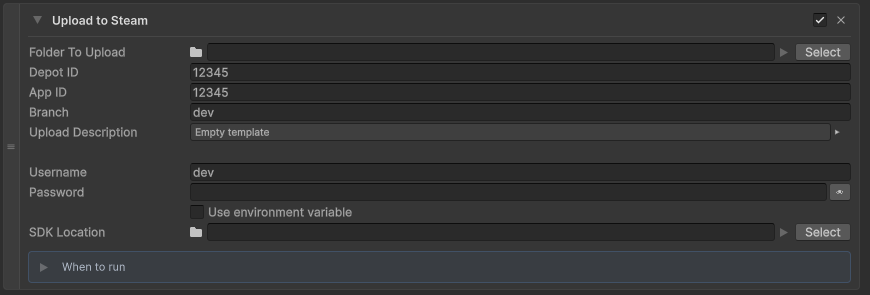
Uploads a build folder using SteamCMD / Steamworks ContentBuilder. Keep credentials on this action; this package does not include SteamCMD. This plugin is not affiliated with Valve.
Install
This plugin is a UPM package. It is not downloaded from this site.
- Open WindowPackage Manager.
- Select My Assets.
- Find Build Assistant Uploader for Steamworks.
- Click Install or Add.
The core package dev.samcarey.buildassistant.core must already be in the project.
Setup
There is no extra Project Settings page. Credentials live on the action.
- Add Uploader for Steamworks (
BA_SteamCmdUpload) as a post-build action on a config. - Set App ID, Depot ID, branch, username, password, and SDK Location.
- SDK Location is your Steamworks SDK folder, or a direct path to
steamcmd/steamcmd.exe.
The action looks for steamcmd at:
<SDK>/tools/ContentBuilder/builder/steamcmd.exe<SDK>/tools/ContentBuilder/builder_osx/steamcmd<SDK>/tools/ContentBuilder/builder_linux/steamcmd<SDK>/steamcmd.exeor<SDK>/steamcmd
Do not store credentials in scenes. Use the action fields or CI launch arguments.
Usage (BA_SteamCmdUpload)
Add BA_SteamCmdUpload to post-build actions. It writes a ContentBuilder VDF and runs steamcmd against the folder you point it at.
Command-line args
- SteamCmdUsernameOverride - Override the username
- SteamCmdPasswordOverride - Override the password
- SteamCmdSdk - Override the Steamworks SDK or steamcmd path
-SteamCmdUsernameOverride "your_username" -SteamCmdPasswordOverride "your_password" -SteamCmdSdk "C:\Path\To\SteamworksSDK"